
Your Complete Beginner-Friendly Walkthrough for Drupal Websites
If you’re ready to build Drupal websites from scratch, you’re in the right place. This step-by-step guide breaks down the entire Drupal website development process into clear, actionable steps — from planning your site and installing Drupal to launching and optimizing it for performance and SEO. Whether you’re a beginner or brushing up your skills, this blog covers everything you need in one place.
Introduction: Why Drupal for Your Website?
Drupal is one of the most powerful open-source content management systems available today. Known for its flexibility, scalability, and enterprise-grade security, it’s a top choice for everything from blogs and small business websites to complex enterprise portals. What makes Drupal stand out is its modular architecture — you can extend functionality endlessly with modules and custom configurations, yet it remains stable and secure.
In this guide, we’ll focus on how to build Drupal websites, starting from concept to launch, while keeping things simple and practical.
1. Planning Your Drupal Website
Before you begin the technical setup, take time to plan your site carefully.
Define Your Website Goals
Ask key questions
What is the purpose of this site (blog, portfolio, online store)?
Who is my audience?
What actions should users take (sign up, contact, purchase)?
This planning phase helps you map out structure and content.
Create a Sitemap and Content Structure
Outline the main pages you want, such as Home, About, Services, Blog, and Contact. Plan how these connect and determine the navigation flow. A clear sitemap makes Drupal website development smoother and more efficient.
List Required Features
Think about what functionality you’ll need:
User registration and profiles
Blog and article management
Galleries or sliders
E-commerce (if applicable)
SEO tools and multilingual support
Knowing your features ahead of time guides module choice.
2. Setting Up Your Environment
To start building, you need a proper development environment.
System Requirements
Drupal 10 is recommended for its stability and security:
Web server: Apache or Nginx
Database: MySQL / MariaDB / PostgreSQL
PHP version: 8.1 or higher
Composer (required for dependency management)
These tools ensure your Drupal site runs smoothly locally or on a server.
Local vs. Hosted Development
Local Environment: Tools like XAMPP or MAMP help you build your site on your computer before going live.
Hosted Environment: Choose a host that supports Drupal and has the latest PHP and database configurations.
Install Composer — this is essential for managing Drupal core and modules efficiently.
3. Downloading and Installing Drupal
With your environment ready, download Drupal:
Installation Options
Manual Setup:
Download Drupal from drupal.org and extract files into your web server directory. Create a new database and proceed with installation.
Using Composer:
Run:
composer create-project drupal/recommended-project my_site_name_dir
This installs Drupal and dependencies in one go.
Run the Installer
Visit your local URL or domain in a browser.
Drupal’s wizard will guide you through choosing an installation profile and connecting your database.
4. Configuring Drupal After Installation
Once installed, a few tasks help you solidify your build.
Clear Cache
Drupal caches configuration and page output — clearing it makes sure all updates are applied.
Enable Clean URLs
Friendly URLs make your content easier to read and better for search engines.
5. Learn the Admin Interface
With your site installed, it’s essential to understand the admin dashboard.
Admin Toolbar
This is your control center for managing content, structure, appearance, modules, and settings.
Content Types
Drupal uses “content types” to structure information. For example:
Article: Ideal for blog posts
Basic Page: For static content like About or Contact pages
Create and customize content types to match your site’s needs.
6. Adding and Managing Content
Create Content
Navigate to “Manage > Content > Add content” and choose your content type. Fill fields like title, body, and images.
Menus and Blocks
Menus control navigation.
Blocks let you place dynamic content in regions like headers and footers.
7. Extending Functionality: Modules and Views
One of Drupal’s strengths is its modular architecture.
Modules
Modules add features like contact forms, SEO tools, and multilingual support. Enable modules via “Extend.”
Views
With the Views module, you can create custom lists, grids, and content displays without coding. This is key for dynamic pages like blog lists or product catalogs.
8. SEO and Clean URLs
To make your Drupal website search-engine friendly:
Enable URL aliases with Pathauto.
Use SEO modules like Metatag.
Create XML sitemaps for better indexing.
9. Theming: Customize Your Site’s Look
Choose a theme and configure its settings for layout, colors, and branding. You can further customize with sub-themes or custom CSS.
10. Maintenance, Security & Launch Checklist
Regular Maintenance
Keep modules and core updated.
Clean unused modules to reduce vulnerabilities.
Backup regularly.
Security Best Practices
Use strong passwords.
Enable HTTPS (SSL).
Restrict permissions.
Use security modules.
Prepare for Launch
Test pages on different devices.
Set up analytics.
Create redirects as needed.
Frequently Asked Questions (FAQ)
Q1. What makes Drupal different from other CMS platforms?
Drupal’s modular design and scalability make it ideal for enterprise-level projects and complex content structures. It’s highly customizable with strong security and community support.
Q2. Do I need coding experience to build Drupal websites?
No — you can build a basic site using the admin interface. Coding is useful for advanced customizations.
Q3. How do modules enhance Drupal website development?
Modules add new features (e.g., SEO tools, forms) without coding and let you tailor your site’s capabilities.
Q4. Can I switch themes after building the site?
Yes — Drupal allows theme changes at any time, though layout adjustments might be needed.
Q5. Should I use Drupal for e-commerce?
Yes — with modules like Drupal Commerce, you can build full online stores.
Conclusion
Building Drupal websites doesn’t have to be intimidating. With this step-by-step guide, you now have a roadmap that takes you from planning to launch and beyond. By following these steps, you can create a secure, scalable, and SEO-optimized Drupal site ready for the digital world.
Ready to start your Drupal journey? Let’s build something amazing!
Related Posts
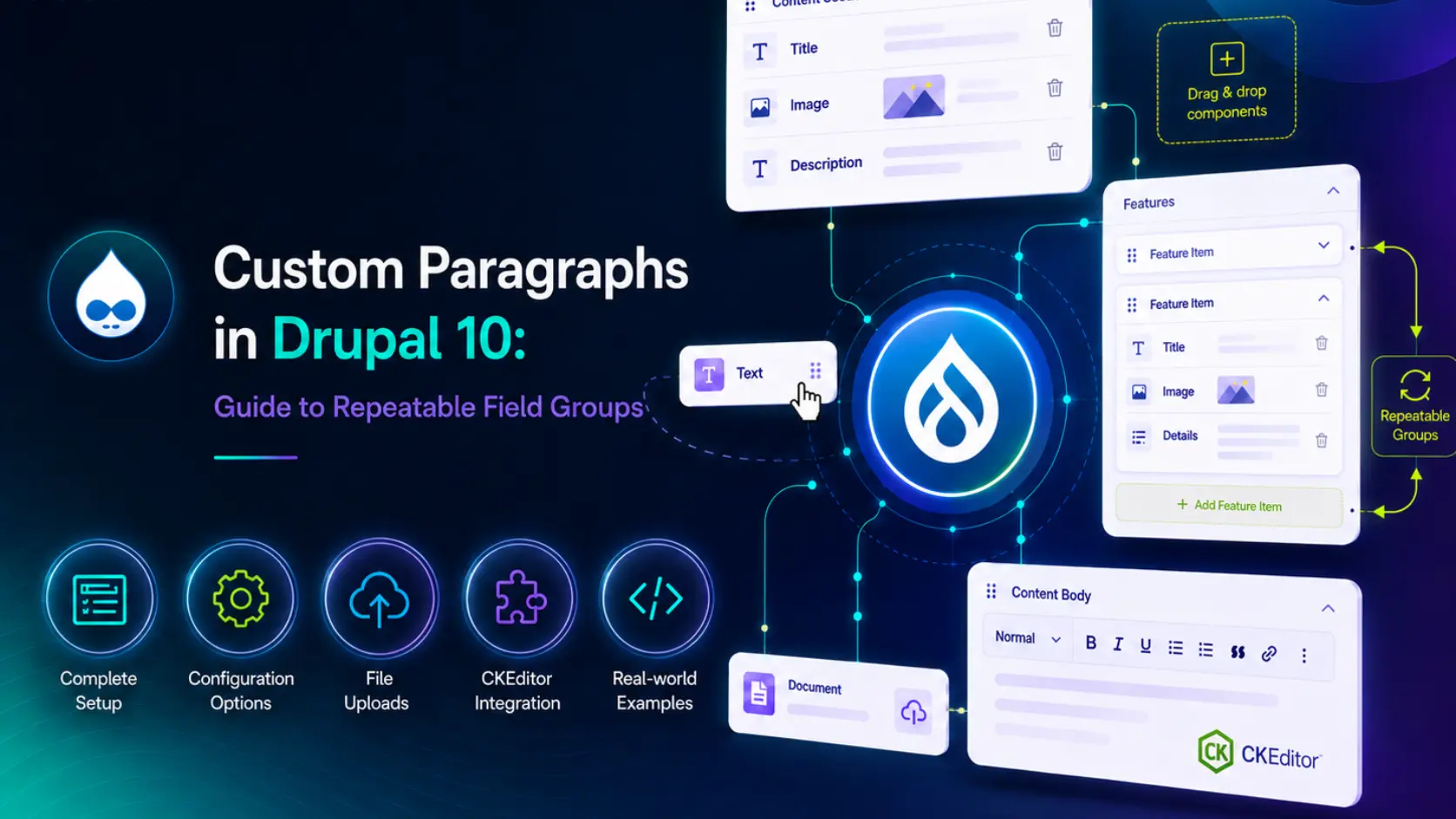
Paragraph vs Custom Paragraph in Drupal
Apr 10, 2026


Drupal vs WordPress: Best CMS Choice for 2026
Dec 09, 2025

Why Drupal Is the Best Choice for UK SMEs in 2025
Sep 05, 2025
Why UK Small Businesses Are Choosing Drupal in 2025
Sep 04, 2025

Is a Website Important in Business
Aug 26, 2025


How Microinteractions Make Your Website Feel Alive
Aug 07, 2025

Disadvantages of having a Drupal 7 Website
Mar 07, 2025
Drupal 7 vs Drupal 10: A Comprehensive Comparison
Mar 07, 2025



How to Choose the Right CMS for Your Website
Jan 06, 2025






Comments